


 22/10/2026
 by Ahetesham
 Copy
Link
Copy
Link
- Why Your Emails Go to Spam (And How SPF, DKIM & DMARC Fix It)
Why Your Emails Go to Spam (And How SPF, DKIM & DMARC Fix It)
Hey there! 💙
Have you ever sent an important email to a client, waited for a reply, refreshed your inbox five times, and started wondering whether they were ignoring you?
Well, plot twist: your email might not have reached their inbox at all. 🥲
It could be sitting in the spam folder, having a little party without you.
Whether you're sending invoices, order confirmations, password reset links, or important business updates, emails landing in spam can cause real problems. And no, simply writing "URGENT" in the subject line won't magically fix it. 😂
One of the most common reasons is that your domain's email authentication isn't configured correctly.
That's where SPF, DKIM, and DMARC come in. These three DNS-based mechanisms help receiving mail servers verify that your emails are legitimate.
Let's break them down without turning this into a networking exam. Ready? 🚀
1. SPF: The Guest List for Your Emails 📋
Imagine hosting a party. You've got a guest list, and the security guard checks who's allowed to enter.
SPF (Sender Policy Framework) works in a similar way.
It tells receiving mail servers which servers are authorised to send emails on behalf of your domain.
For example, suppose your domain is example.com and you use an email provider to send business emails. That provider may ask you to add an SPF record to your domain's DNS settings.
An illustrative SPF record might look like this:
v=spf1 include:mail-provider.example ~all
Important: This is only an example. You must use the exact SPF value provided by your actual email service. The include mechanism above is not a real provider configuration.
Here's what the parts mean:
v=spf1identifies the record as an SPF policy.include:mail-provider.examplerepresents an authorised sending provider.~allindicates a soft-fail for senders that don't match the policy.
When a receiving server checks SPF, it compares the sending server against the policy published for the relevant domain.
Common SPF mistakes
- Publishing multiple SPF records for the same hostname.
- Forgetting to authorise a legitimate sending service.
- Copying an SPF record from another website without checking whether it applies to your setup.
- Exceeding SPF's DNS lookup limit.
Remember, if you're sending email through multiple services, your SPF configuration needs to account for all legitimate senders. Don't blindly add records every time a new provider asks for verification!
2. DKIM: The Digital Signature ✍️
SPF checks whether a sending server is authorised. But what about verifying that an email carries a valid cryptographic signature?
Meet DKIM (DomainKeys Identified Mail).
DKIM adds a digital signature to outgoing emails. The receiving mail server can verify that signature using a public key published in your domain's DNS.
Think of it like a tamper-evident seal on a package. 📦 The signature helps the receiver check that the signed parts of the message haven't been altered in transit and that the signature corresponds to the published key.
Your email provider will generally give you a DKIM record to add to your DNS settings. Depending on the provider, it may be a TXT record or a CNAME record.
A DKIM TXT record can contain a public key, but its exact name and value depend on your provider.
Don't generate a random DKIM key or copy one from an online example. Use the record generated for your domain by your email service.
Once the DNS record is published and the provider has enabled signing, send a test email and check whether DKIM passes.
One more thing: DKIM passing doesn't automatically mean an email will reach the inbox. It's one important part of the bigger picture.
3. DMARC: The Bouncer Who Checks the Details 🕵️
Now we have SPF checking authorised senders and DKIM verifying signatures. So where does DMARC fit in?
DMARC (Domain-based Message Authentication, Reporting, and Conformance) builds on SPF and DKIM.
It tells receiving mail servers what policy to apply when messages fail DMARC authentication, and it can help domain owners receive reports about authentication activity.
Here's an illustrative DMARC record:
v=DMARC1; p=none; rua=mailto:dmarc-reports@example.com
Replace dmarc-reports@example.com with a real mailbox or reporting service that can receive DMARC aggregate reports.
Let's decode the record:
v=DMARC1identifies the DMARC version.p=noneasks receivers not to quarantine or reject messages based on the DMARC policy.rua=mailto:...specifies where aggregate reports can be sent.
So why start with p=none?
Because you want to understand which services are sending email using your domain before enforcing stricter policies. If you immediately choose quarantine or reject without checking your legitimate senders, you could affect genuine business emails.
Start by monitoring your reports, confirm that your legitimate services are authenticated and aligned, and then consider a stricter policy when you're ready.
Still confused about how these three records work together?
Take a look at the diagram below! 👇
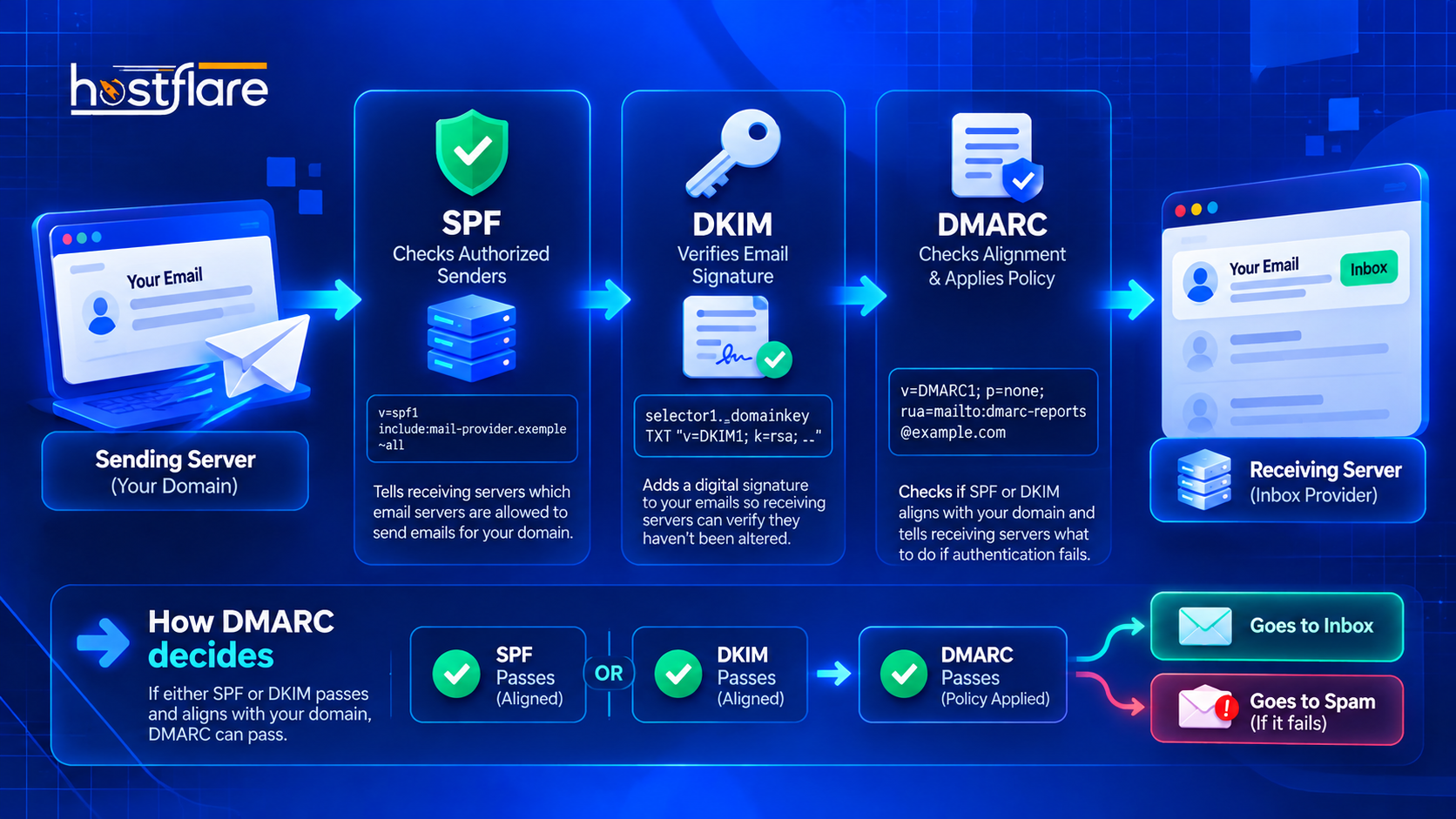
See how each one has a different job? SPF checks whether the sending server is authorised, DKIM verifies the email's signature, and DMARC checks alignment and applies the domain's policy.
Three different jobs, one email authentication team. 💙
One important detail: DMARC alignment means the domain authenticated by SPF or the domain associated with the DKIM signature must align with the domain in the visible From address, according to the domain's DMARC alignment settings.
That's why simply having SPF and DKIM records isn't always enough. They need to be configured properly for the domain you're actually sending from.
4. Still Landing in Spam? Let's Investigate. 🔍
You've added SPF, configured DKIM, and published DMARC. But your emails are still landing in spam?
Don't panic just yet. There are a few more things to check.
Check 1: Inspect the email authentication results
If you're using Gmail, open a test email, click the three-dot menu, and select Show original.
You'll see authentication results that may include:
SPF: PASSDKIM: PASSDMARC: PASS
These results help you understand whether the checks are working for that particular message.
Check 2: Verify your DNS records
A small typo in a DNS record can cause a surprisingly large headache.
Double-check the record name, type, and value against the instructions from your email provider. Also remember that DNS changes may take time to propagate.
You can use a DNS lookup tool to inspect the published records, but always compare the results against your provider's official configuration.
Check 3: Check DMARC alignment
SPF or DKIM can pass individually while DMARC still fails if neither authenticated domain aligns with the domain shown in the email's From address.
If you're using a third-party email service, check whether it supports custom-domain DKIM signing and whether your sender configuration is correct.
Check 4: Review your sending habits
Authentication is important, but it's not the only factor in inbox placement.
Other things that can affect deliverability include:
- Sending large volumes of email unexpectedly.
- Sending messages to invalid or outdated addresses.
- Receiving spam complaints from recipients.
- Using misleading subject lines or content.
- Having a poor sending-domain or IP reputation.
Keep your mailing lists clean, send messages people actually expect, and follow the email provider's sending guidelines.
Want to see what a successful authentication check looks like?
Here's an example of the results you should look for. 👀
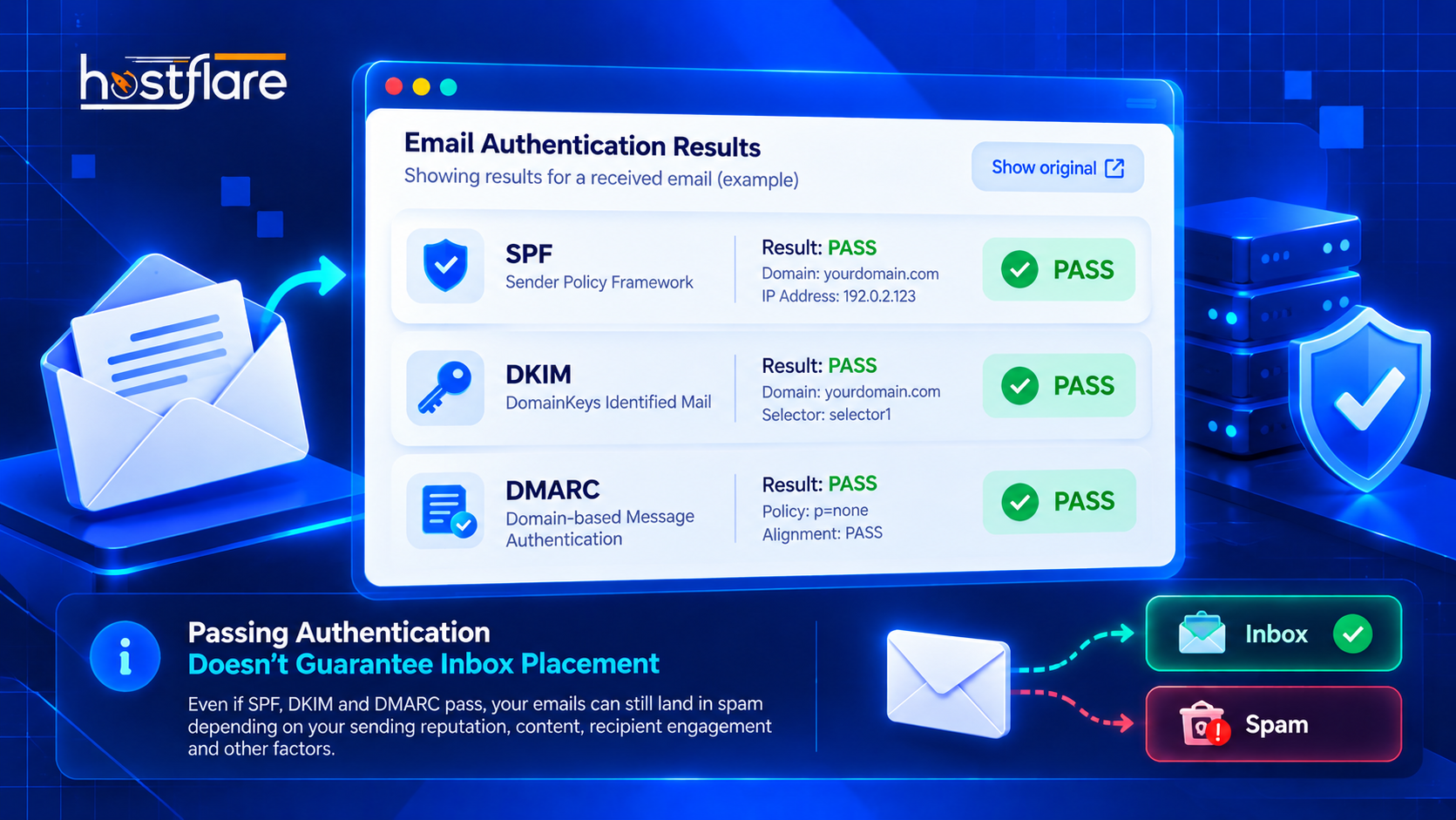
If all three checks show PASS, that's a good sign that authentication is configured correctly for that message.
Just remember that this is an illustrative example. Passing SPF, DKIM, and DMARC doesn't guarantee inbox placement. Mailbox providers also consider reputation, recipient engagement, sending behaviour, and other signals.
5. The Quick Checklist Before You Call It a Day ✅
Before you close all those DNS tabs, run through this checklist:
- [ ] Publish the correct SPF record for your sending services.
- [ ] Enable DKIM using the keys or records supplied by your email provider.
- [ ] Publish a DMARC record and monitor reports before enforcing a stricter policy.
- [ ] Confirm that SPF or DKIM authentication aligns with your visible From domain.
- [ ] Send a test email and inspect its authentication results.
- [ ] Keep your mailing lists clean and follow responsible sending practices.
You don't have to become a DNS wizard overnight. 🧙 Take it one record at a time, test your configuration, and keep an eye on the results.
6. Need Professional Email Hosting? We've Got You. 💌
If you're running a business, your email deserves the same attention as your website.
A professional email address such as hello@yourdomain.com helps you communicate using your own domain instead of relying on a generic personal address.
And if you're looking for a place to start, check out HostFlare Email Hosting and explore the available options for your domain.
Shameless plug? Maybe a tiny one. 🤭 But your business emails deserve a setup you can manage with confidence.
Final Thoughts 💙
Emails landing in spam can be frustrating, especially when you're trying to run a business and keep customers informed.
SPF helps identify authorised senders, DKIM verifies digital signatures, and DMARC adds alignment checks and policy instructions. Together, they give receiving mail servers useful signals to evaluate your emails.
Configure them carefully, test your setup, and remember that email deliverability is an ongoing process—not a one-time DNS fix.
Now go give those emails a better chance of reaching the inbox. Your spam folder has hosted them long enough! 😂
Happy Hosting! 💙